Kronos Mobile App
Overview
Kronos is Revolution Prep's mobile app, available on the Apple App Store and Google Play for both students and tutors. We built this app up to give students a focused, on-the-go surface for the parts of the product that matter most away from a desktop: live Homework Help, scanning and scoring practice exams from a phone camera, and self-proctored timed practice.
For students, Kronos surfaces upcoming Homework Help sessions, lets them save a spot or join a live session, and uses the phone camera to scan exam answer sheets, detecting the QR codes on the page, walking the student through any answers it couldn't read cleanly, and returning a score the moment they finish reviewing.
For tutors and admins, Kronos offers a daily assignments view and the same on-the-go scoring tools for in-person mock events.
The Challenge
- The app had to feel native on iOS and Android while sharing a codebase, which meant carefully wrapping the platform-specific pieces (camera, permissions, Zoom handoff) behind a consistent experience. We leveraged the Ionic framework to accomplish this.
- Exam scoring on a phone has to be forgiving, users rarely take photos in ideal lighting, so the scanning flow needs error handling, retake prompts, and a review step the users can trust.
- Real-time pieces (live session state, "save spot" reservations, join-now transitions) had to stay in sync with the same backend that powers the student dashboard on web.
Motivation
- Students do their homework wherever they happen to be, and most of them have a phone before they have a laptop nearby.
- Scoring a paper practice exam was painful on desktop; a phone camera makes it easy.
Goals
- A focused mobile product that does a few things excellently rather than mirroring the whole student dashboard.
- Make Homework Help and exam scoring a one-tap experience for students.
- Increase Student practice exam scoring.
- Give tutors a mobile companion for in-person events without needing to carry a laptop.
Exam Scan
The Exam Scan flow is the most-used feature in Kronos. Practice exams are still written on paper bubble sheets, and getting them scored used to mean handing the sheet back to a tutor or proctor. With Kronos, students scan and score their own exams from their phone in under a minute, then watch their score history grow over time.
Exams Overview
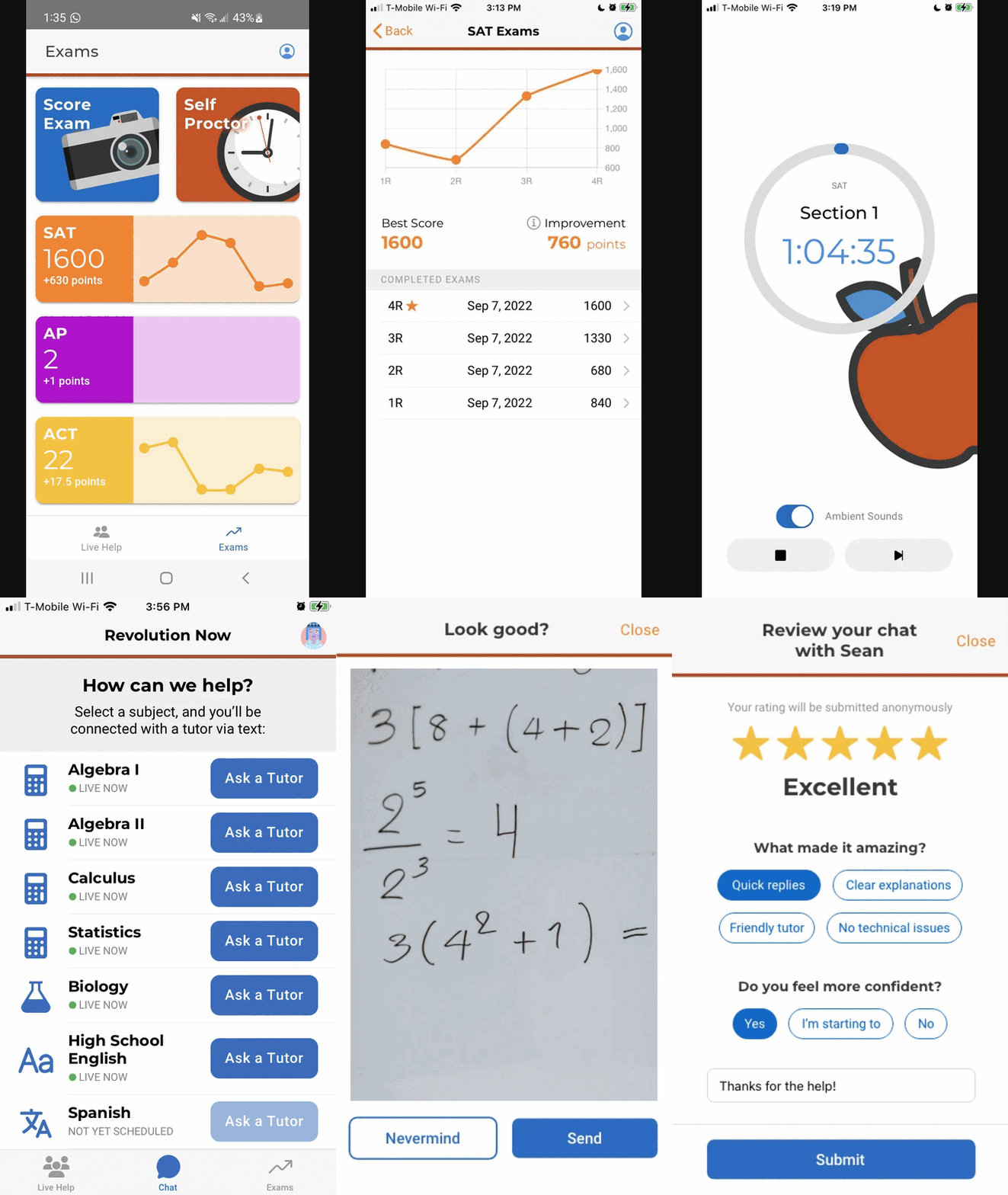
The Exams tab is the home for everything a student has scored. We surface their best score per exam type, a chart of how scores have trended, and an entry point to either scan a new exam or self-proctor a fresh one. For students taking multiple exam types (SAT, ACT, PSAT), each gets its own card so progress stays legible at a glance.

Scanning a Bubble Sheet
When a student taps Score Exam, Kronos opens the camera with a live overlay that guides them to frame the page border and the QR code. We detect the exam type from the QR code on page one, then walk the student through scanning each remaining page with a progress counter. The flow is built to be forgiving: out of order, retake a page, replace a bad scan, and a review step lets the student correct any answer the backend optical mark recognition software wasn't confident about before submitting.

Tracking Improvement
After a student has scored more than one of the same exam type, the Exams page shows their best score, their improvement since the first attempt, and a trend chart pulling together every scored exam. Tapping any entry opens the full score report. The goal is to make the progress feel real, the same way a fitness app does, encouraging students keep coming back to take another exam.

Self-Proctored Exams
Practice exams are most useful when students take them under realistic conditions, but students don't proctor on call. Self-Proctored Exams turn the phone into the proctor: it reads the section prompts aloud, keeps strict timing for every section, and warns the student if they leave the app mid-exam. When the student finishes, the same Exam Scan flow scores their bubble sheet.
Configure the Exam
The student picks an exam type, chooses which sections they want to take, and optionally downloads a printable answer sheet. The total time updates as sections are added or removed so the student knows exactly how long they're committing to.

Live Proctoring
Once the exam starts, Kronos reads each section's opening script aloud, starts a section countdown, and plays ambient sound to keep the student focused. Students can fast-forward between sections, stop the exam, or background the app, and we send a notification if they're away too long so they don't lose their place.

Revolution Now
Revolution Now was Kronos's on-demand text-chat tutoring product. Instead of waiting for a scheduled session, a student could open the app, pick a subject, and be in a live chat with a qualified tutor within seconds. We built the whole experience inside Kronos: subject browsing, live chat, image uploads, a collaborative whiteboard, and a post-session review flow.
Home Page
The Revolution Now home page renders the subjects a student has set up and which ones have a tutor available right now. Live subjects bubble to the top with a clear call to start a session; subjects with a tutor coming online soon show their next live window.

Ask a Tutor
Tapping into a live subject opens a short confirmation step so the student knows who they're about to chat with and how their session will count against their plan. From here it's one tap to start the conversation.

Live Chat
The chat itself is built for the speed students actually expect from a messaging app, typing indicators, near-instant delivery, and an attachment button that handles photos, files, and the whiteboard.

Send a Picture
Most homework questions are easier to explain with a photo of the problem. Students can snap a picture or pick one from their library and send it inline, which the tutor can then annotate or reference directly in their reply.

Draw on the Whiteboard
For problems that need real explanation, either side can open a whiteboard and draw. It's the difference between a tutor saying "imagine a right triangle" and actually sketching one for the student to work through.

Review the Tutor
When the session ends, the student rates their tutor and can flag what went well or what could have been better. The ratings fed back into our staffing data so the best tutors got matched to more sessions, and the friction-free flow made students likely to actually leave feedback.
